Creating PDFs for Large Format Poster Printing
For trouble free digital poster printing convert your file to a PDF
To print posters PDFs are the best. A PDF stores all the information a large format printer needs to ensure your posters print as you see them on screen. A PDF can be created from any program, including Microsoft Word, Powerpoint, Publisher, WordPerfect etc. PDFs are created by printing to a special utility, just as you would print to a desktop printer. Therefore any program that can print can be used to create a pdf. PosterBox has reviewed 3 PDF converters which all create pdfs suitable for poster printing. There are other converters available and if you use one that you would recommend please drop me a line.
Quick Links: Downloads, PDF995 Summary, PDF995 Tutorial, EZYpdf Creator Summary, EZYpdf Creator Tutorial, CutePDF Summary, CutePDF Tutorial
Name |
PDF995 |
CutePDF |
EZPDF Creator |
Website |
n/a |
||
Download Page |
|||
Operating Systems |
Windows 7; Vista; XP; Citrix/Terminal Server; Server 2008; Windows 2003; Windows 95, 98, NT 4.0, 2000 and ME. |
Supports Microsoft Windows 98/ME/2000/XP/2003/Vista/7 (x86/x64) |
Windows |
Support Page |
n/a |
||
Cost |
Free - Upgrades available |
Free |
Before downloading or installing these programs please visit and verify their host websites to your satisfaction and read the License agreements. PosterBox accepts no liability for damage any of these programs may cause.
Posterbox's PDF Test File
To test these programs we created an A3 poster in Microsoft Word 2007. The document has many different elements that can cause problems when printing posters - clipart, photos, solid colours, gradients, special effects, lots of different fonts and pattern fills. All the converters did a good job of creating the pdfs and the pdfs created would all print very well as posters. There are however some differences between the Word document and the PDFs. Can you notice them? Always check your PDF on screen very closely - zoom in and check the resolution of your images, check that all your fonts are displaying correctly and check any special effects you may have used such as pattern fills or 3D effects. A PDF will print as you see it on screen!
Downloads
Download our test file and PDF result files.
- Microsoft Word 2007 PosterBox PDF test file
- Microsoft Word 98 PosterBox PDF test file
- PDF995 test result file
- EZYpdf Creator test result file
- CutePDF test result file
PDF995 - Summary and settings for printing large format posters with PosterBox
"Pdf995 makes it easy and affordable to create professional-quality documents in the popular PDF file format. Its easy-to-use interface helps you to create PDF files by simply selecting the "print" command from any application, creating documents which can be viewed on any computer with a PDF viewer. Pdf995 supports network file saving, shared printing, Citrix/Terminal Server, custom page sizes and large format printing."
As with all of these programs PDF995 is very easy to use and creates good pdfs suitable for poster printing. Support via email is very quick, any query we have had has generally been answered within 2 hours. The free version, or sponsored version, displays an advertisement when creating the pdf, which can get a little annoying but this can be overcome by purchasing the license for $US9.95. You can upgrade PDF995 to add additional functionality such as merging two pdfs into 1, deleting pages in a pdf, securing pdfs with a password. Visit their website for further information.
Creating PDFs for Large Format Poster Printing with PDF995
Ready to create your pdf? To make sure your pdf is suitable for poster printing please follow these handy tips.
1) When your design is completed and proofed! click 'print' and select PDF995 from the printer drop down menu. Next click 'Properties'
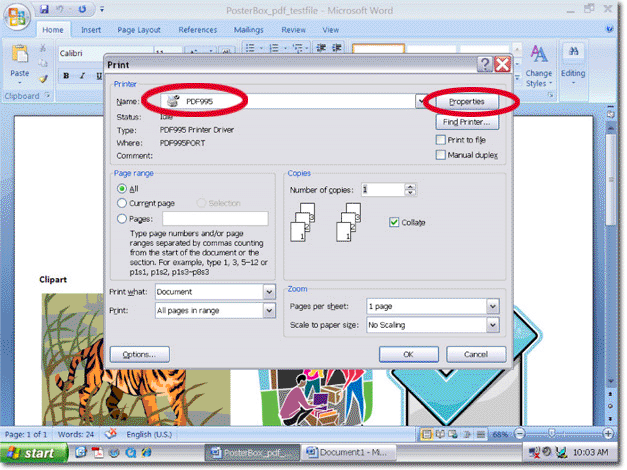
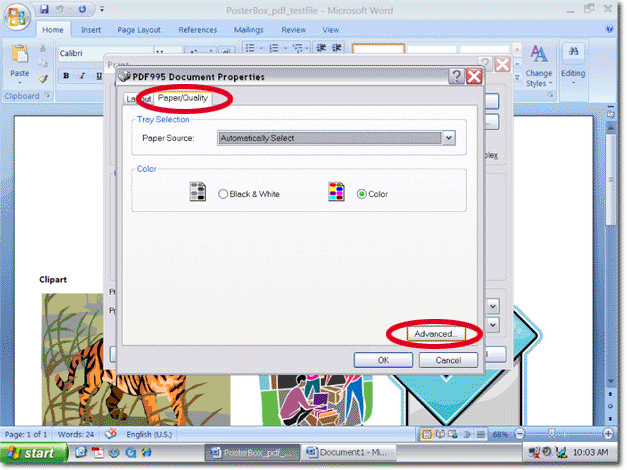
2) From the Properties window select 'Paper/Quality' then click 'Advanced'

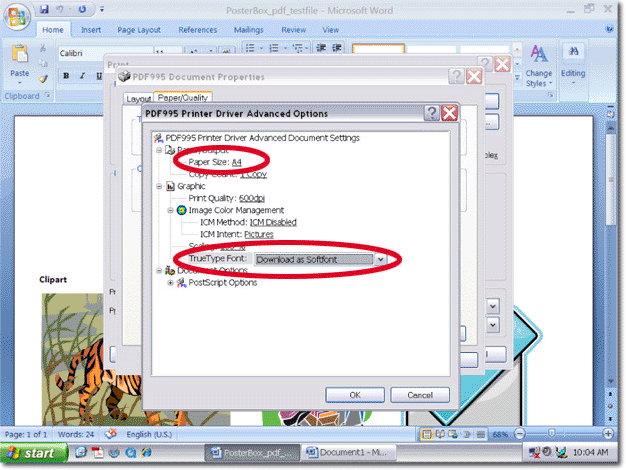
3) Select the correct page size, this is the size you have designed your poster at and set the TrueType Font to 'Download as Softfont'. If your document size is not the same size as the poster you require, please do not try to enlarge with these settings. It is best to leave any enlarging to us, just let us know what size you require. Click 'OK' and then click 'Print'. PDF995 will ask you to name your pdf and were you would like it saved.

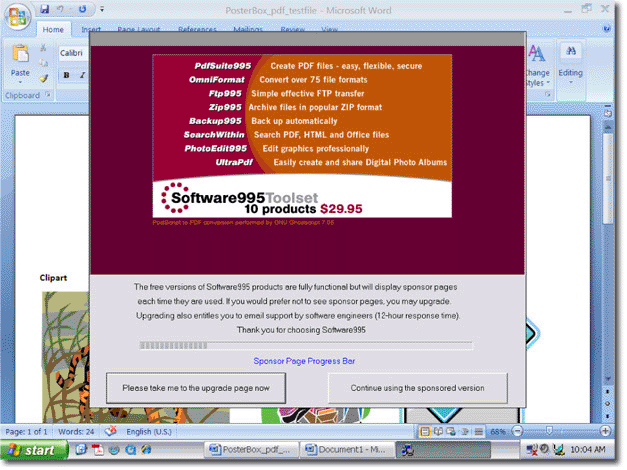
4)- If you have the sponsored version of PDF995 you will see a screen similar to this one while the conversion is being performed. To stop this screen from appearing simply purchase a license. PosterBox can now print posters from your pdf!

EZYpdf creator - Summary and settings for printing posters with PosterBox
I couldn't find much information on EZYpdf which does worry me a little. I was unable to locate a user license agreement or a website selling the product. The only link I found gives a download link and information on how to use it. So please be cautious with this one and if anyone does find any more information about EZYpdf please email me.
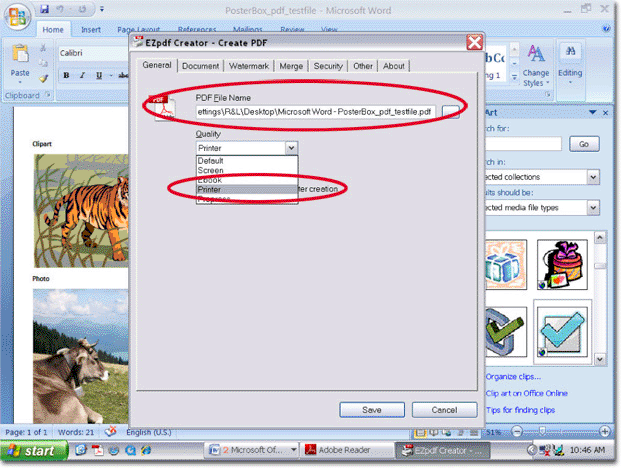
Despite my reservations I went ahead and installed EZYpdf creator and found the program to be surprisingly good. EZYpdf provides a greater level of control over the final settings of your pdfs. The main distinction between EZYpdf and PDF995/CutePDF is its ability to use different quality settings for creating pdfs. The quality settings are:
- Screen - creates smaller files sizes with reduced quality that are ideal for emailing eg emailing a proof of your poster design
- EBook - for EBooks!
- Printer - The best setting for printing posters with PosterBox
- Prepress - When printing offset
EZYpdf creator also gives you the ability to add Author information - your name, title, subject and keywords - add a watermark eg DRAFT, merge with another pdf document and put a password on your pdf. You can even set how a document will open, either at page width zoom or one page zoom. For functionality, EZYpdf Creator is the best pdf creator of the 3 but its lack of online 'verification' causes me to urge caution before installing.
Creating PDFs for Large Format Poster Printing with EZYpdf Creator
Ready to create your pdf? To make sure your pdf is suitable for poster printing please follow these handy tips.
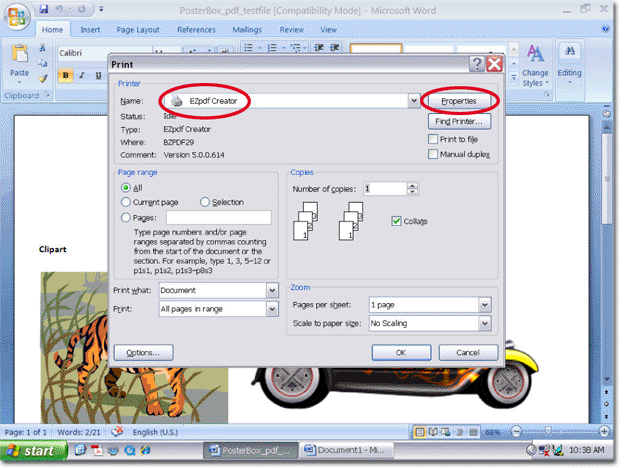
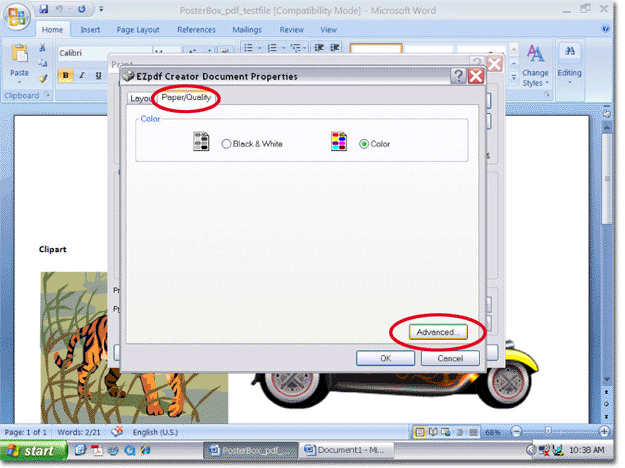
1) When your design is completed and proofed! click 'print' and select EZYpdf Creator from the printer drop down menu. Next click 'Properties'
2) From the Properties window select 'Paper/Quality' then click 'Advanced'

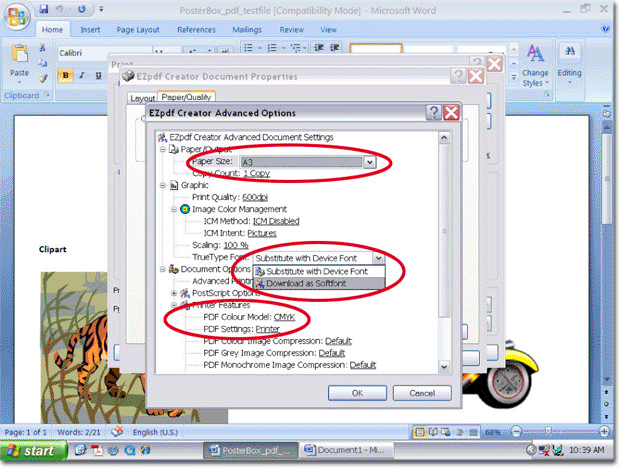
3) Take your time on this screen there are quite a few options to set right.
- Select the correct page size, this is the size you have designed your poster at
- Set the TrueType Font to 'Download as Softfont'
- In Printer Features set PDF colour Model to CMYK
- and PDF Setting to Printer
- Click 'OK' and then click 'Print'.

4) Choose where you want to save and name your PDF. Double check the quality setting and click SAVE

CutePDF - Summary and settings for printing posters with PosterBox
"Portable Document Format (PDF) is the de facto standard for the secure and reliable distribution and exchange of electronic documents and forms around the world. CutePDF Writer (formerly CutePDF Printer) is the free version of commercial PDF creation software. CutePDF Writer installs itself as a "printer subsystem". This enables virtually any Windows applications (must be able to print) to create professional quality PDF documents - with just a push of a button!"
CutePDF is very similar in functionality to PDF995 without the annoying sponsorship screen. The program is easy to use and does a good job of producing poster printing quality PDFs. Their website is very helpful and you can upgrade to more advanced programs which give you more functionality.
Creating PDFs for Large Format Poster Printing with CutePDF
Ready to create your pdf? To make sure your pdf is suitable for poster printing please follow these handy tips.
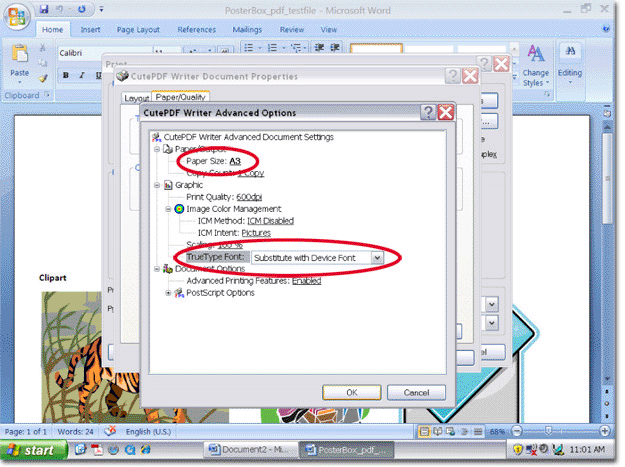
1) When your design is completed and proofed! click 'print' and select CutePDF from the printer drop down menu. Next click 'Properties'
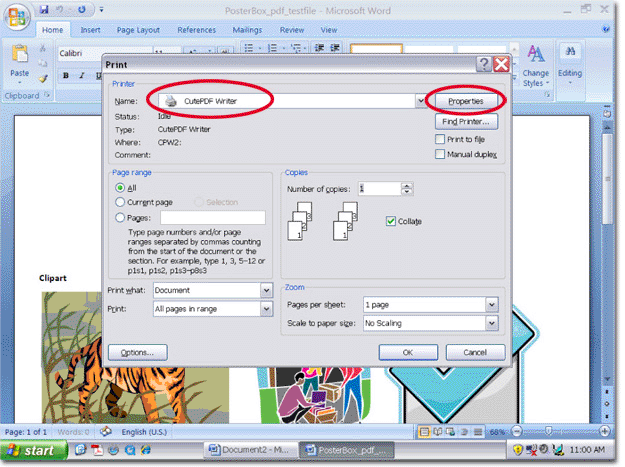
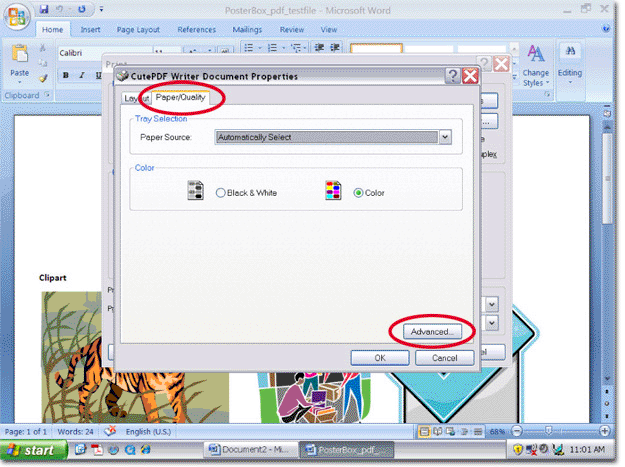
2) From the Properties window select 'Paper/Quality' then click 'Advanced'

3) Select the correct page size, this is the size you have designed your poster at and set the TrueType Font to 'Download as Softfont'. If your document size is not the same size as the poster you require, please do not try to enlarge with these settings. It is best to leave any enlarging to us, just let us know what size you require. Click 'OK' and then click 'Print'. PDF995 will ask you to name your pdf and were you would like it saved.

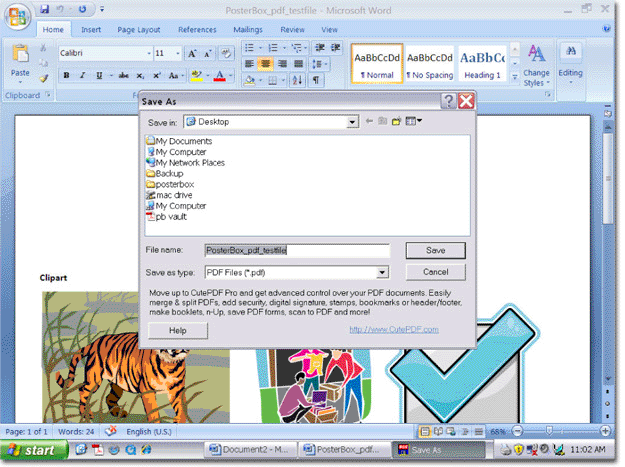
4)- Final step is name your file and choose where you would like to save it. Click Save and your pdf will be created ready for poster printing with PosterBox!

If you have comments or suggestions about this page please email Richard Stoute. We hope this information has been helpful to you.
PosterBox is the online solution for ordering fast, high quality digital large format poster printing with same day printing.